How to delete screenshots on iPhone: all at once, or without losing the ones you need
To delete every screenshot at once: Photos → Albums → Screenshots (under Media Types) → Select → Select All → trash, then empty Recently Deleted to get the storage back. If some of them still matter, go through them instead: in Sweepy you swipe left to delete and right to keep, 25 or 50 per round, and nothing is deleted until you review the round and tap Apply.
Method 1: delete all screenshots in Photos
Fastest when you want every screenshot gone. Apple groups them automatically, so there is nothing to search for.
- Open Photos and go to Albums, then Screenshots under Media Types.
- Tap Select, then Select All.
- Tap the trash icon and confirm.
- Open Recently Deleted (under Utilities), unlock it, tap Select, then Delete All. Storage is not freed until this step, or until 30 days pass.
Method 2: go through them one swipe at a time
Select All has no judgement: the boarding pass, the receipt for a return and a recipe you meant to cook go with the memes. Sorting one by one is slower per screenshot but far faster than scrolling a grid looking for the ones to keep. Sweepy shows one screenshot at a time; left deletes, right keeps, up files it into a folder (a real Photos album), and rounds of 25 or 50 make a pile of thousands manageable a few minutes at a time.

Nothing is deleted until you say so
At the end of a round you see the decisions, can undo any of them, and tap Apply. iOS then asks once to confirm, like any deletion from Photos, and the deleted screenshots go to Recently Deleted. Your progress saves after every swipe, so you can stop mid-round. Screenshots you keep can be filed into albums — see organizing screenshots into albums.

Delete screenshots one swipe at a time
Choose a round size
25 or 50 screenshots per round in the free version (100 or 200 with Pro).
Swipe
Left to delete, right to keep, up to file into a folder. Tap Undo to reverse the last decision.
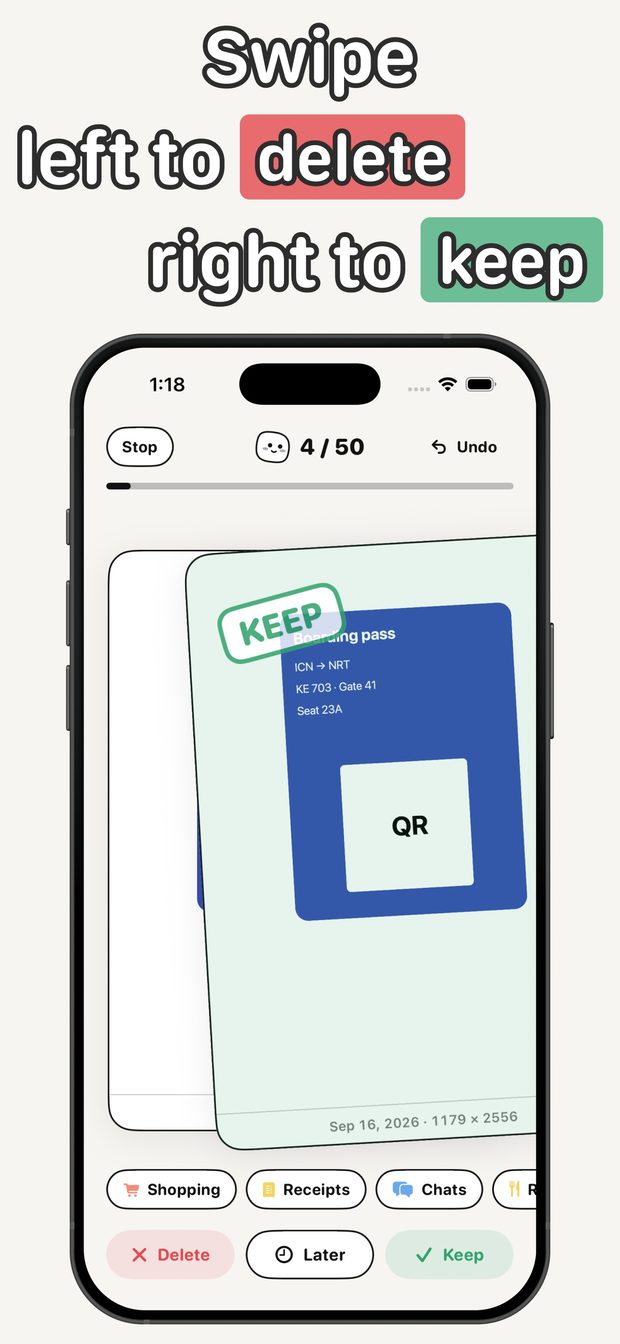
Sorting card being swiped right to Keep, with Delete, Later and Keep buttons and folder chips below Apply
Review the round, then tap Apply and confirm the iOS prompt.
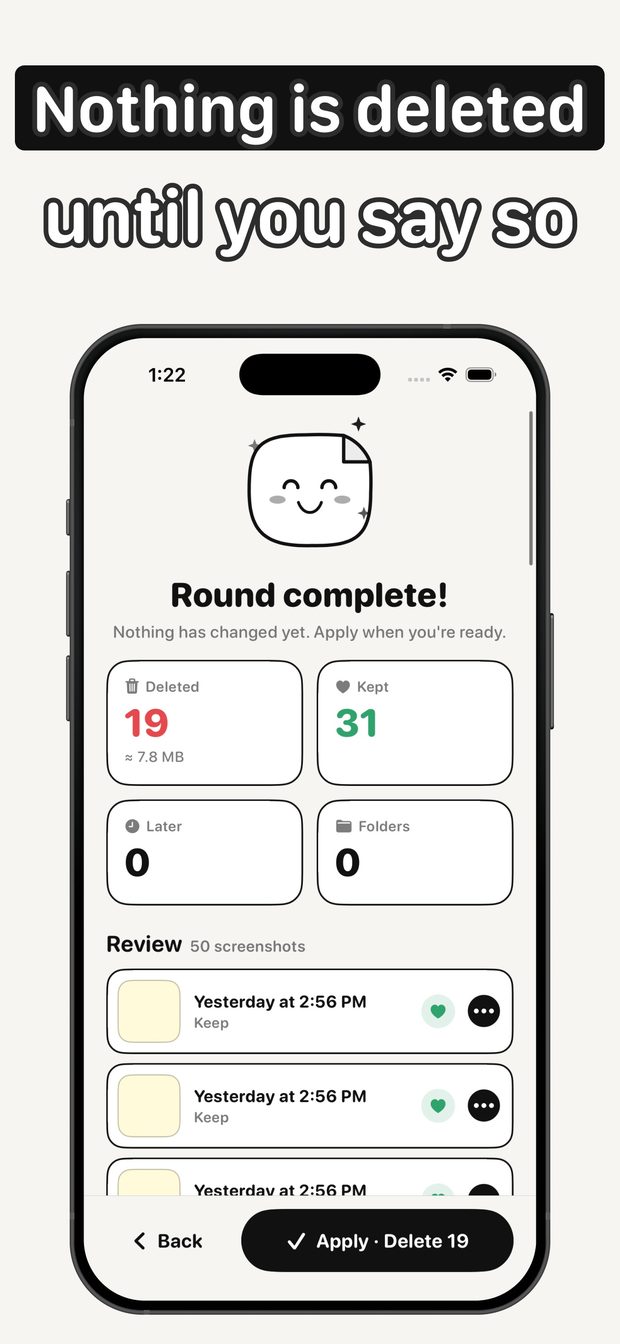
Round complete summary: 19 deleted, 31 kept, a review list of the round and an Apply Delete 19 button Empty Recently Deleted for the space
Photos keeps deleted items for 30 days; empty Recently Deleted to reclaim the storage now.
What this cannot do
- Sweepy does not bypass Recently Deleted; storage returns when that album is emptied or after 30 days, as with any Photos deletion.
- Free sorting covers screenshots; sorting the whole camera roll is a Pro feature.
- iPhone only, iOS 15 or later.
Questions people ask
Why didn't deleting screenshots free up storage?
Deleted photos move to Recently Deleted for 30 days. Open Albums → Recently Deleted, select all and delete them to get the space back immediately.

Screenshot Organizer - Sweepy
Swipe left to delete, right to keep: clear thousands of screenshots, no ads.