Retro Collage: Photo Scrapbook app icon
Photo & Video · Productivity · Free

Retro Collage app: vintage scrapbook collages on iPhone

Pick a layout, add photos, film filters and stickers, export in post, story or pin size.

  • Free · In-app purchases
  • iPhone · iOS 16+
  • 46.7 MB
  • Age 4+
  • Updated September 2026
  • English

Screenshots

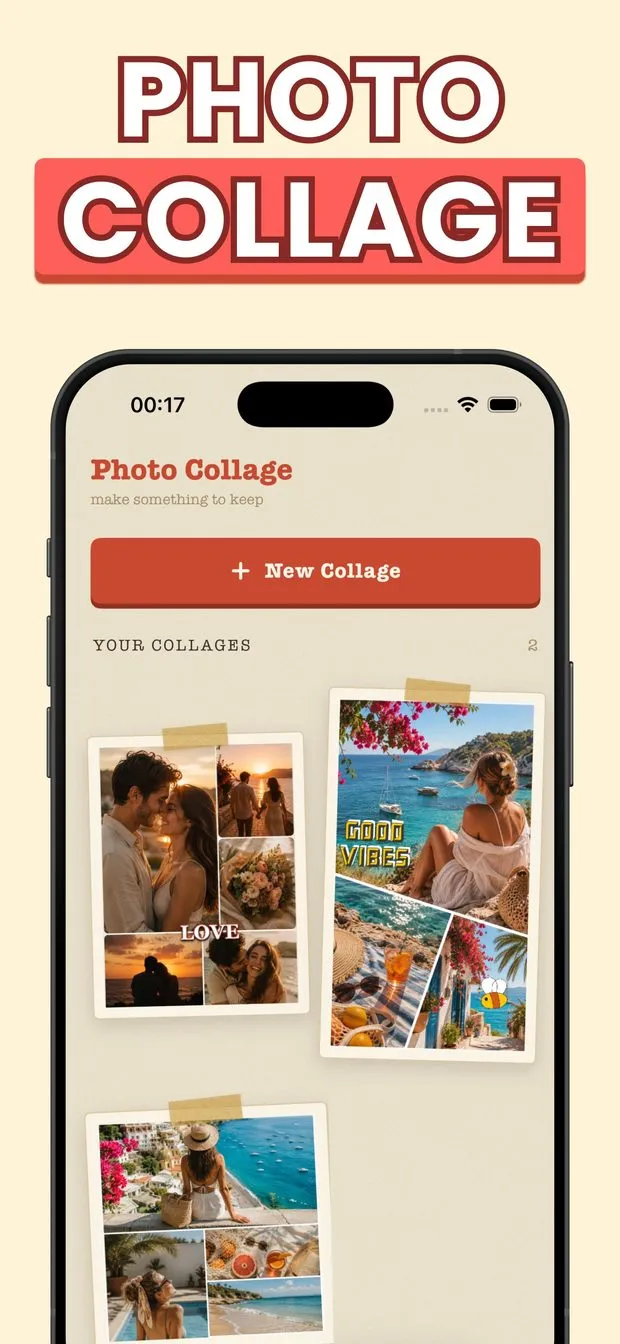
Retro Collage home screen: New Collage button and saved collages pinned with tape, including a LOVE grid and a beach page
Collage editor with a four-photo beach layout, Export button and size picker tabs from 1:1 Post to 3:4 Photo
Choose Layout screen with size tabs and layouts grouped by photo count, including split, diagonal, curved and circle frames
Sticker sheet with Emoji, Words, Love, Birthday and Party tabs showing hearts, crowns, rainbows and GIRL POWER word stickers
Share screen previewing a finished GOOD VIBES beach collage with Save to Photos and Share buttons below it

Retro Collage at a glance

Developer
Burak Köse, independent
Platform
iPhone · iOS 16 or later
Core use case
Vintage scrapbook collages: 200+ layouts, 900+ stickers, film filters.
Key differentiator
200+ layouts, grouped by photo count
Account
Not stated in the listing
Internet
Not stated in the listing
Your data
See the privacy policy
Pricing
Free download · optional in-app purchases
Version
1.0.1 · September 2026 · 46.7 MB
Download
App Store

Retro Collage is a retro collage app for iPhone that turns a handful of photos into a warm, vintage-style scrapbook page. It is built for people who want a summer trip, a birthday or an ordinary Tuesday to look like a keepsake rather than a plain grid: 200+ layouts, 900+ stickers, one-tap film filters and text tools, exported in post, story, portrait or pin sizes.

200+ layouts, grouped by photo count

Grids, shapes and heart frames for one photo or many. Layouts are sorted by how many photos they hold, so you pick a count first, then a shape.

900+ stickers in categories

Hearts, words, emoji and more, sorted into tabs like Emoji, Words, Love, Birthday and Party. Drop them onto the page like real scrapbook stickers.

Retro film filters in one tap

Apply a nostalgic film look in a single tap, then fine-tune each photo's brightness, contrast, warmth and crop on its own.

Every size: post, story, pin

Canvas presets for 1:1 post, 4:5 portrait, 9:16 story, 16:9 video, 2:3 pin and 3:4 photo. Export in high quality and share to Instagram or messages.

How to make a retro scrapbook collage on iPhone

Retro Collage keeps the flow short. Tap New Collage, choose a canvas size such as 1:1 Post or 9:16 Story, then pick a layout. Layouts are grouped by how many photos they hold, starting at one photo, so you are never scrolling through grids that do not fit the set you have.

Drop your photos into the slots, then decorate: retro film filters, stickers, text, borders, frames and a background color. Each photo can be adjusted on its own for brightness, contrast, warmth and crop. When it looks right, tap Export and either save to Photos or share straight to Instagram, messages or any other app. No design skills are needed. Saved collages show up on the home screen pinned with tape strips, which is a good preview of how the warm, vintage layouts read as a scrapbook page rather than a grid.

Aesthetic collage app for Instagram story, post and Pinterest pin sizes

Retro Collage puts the size choice on the same screen as the layouts. The size picker offers six presets: 1:1 Post, 4:5 Portrait, 9:16 Story, 16:9 Video, 2:3 Pin and 3:4 Photo. 1:1 Post is selected by default, and the size tabs sit at the top of the Choose Layout screen (and again in the editor), so switching to 9:16 Story before picking a layout builds the page at story size from the start.

That matters for the Instagram scrapbook post trend, where aesthetic collage templates for stories are what people search for and where a photo dump is arranged like a journal page with cutouts and stickers. Build the story version at 9:16, then open the same idea as a 4:5 portrait for the feed or a 2:3 pin for Pinterest. Export is high quality, and the share sheet goes to Instagram, messages and anywhere else.

  • 1:1 Post for the Instagram feed
  • 4:5 Portrait for a taller feed post
  • 9:16 Story for Instagram stories
  • 16:9 Video for landscape video frames
  • 2:3 Pin for Pinterest
  • 3:4 Photo for a standard photo ratio

Photo collage app with film filters, text and per-photo adjustments

The retro look comes from the film filters: one tap gives the collage a nostalgic film tone without hand-editing each image. If a single photo is too dark or too cool, you fix that one photo with brightness, contrast, warmth and crop controls without touching the rest of the page.

Text is more than a caption box. You choose fonts, then set outline, shadow, spacing and colors. Borders, frames and background colors finish the page: a cream background with a thin white border reads like a printed photo taped into a scrapbook, while a bold color reads more like a poster.

  • Retro film filters, one tap
  • Brightness, contrast, warmth and crop per photo
  • Fonts with outline, shadow, spacing and colors
  • Borders, frames and background colors

Collage app with 900+ stickers sorted into categories

Stickers are where a grid turns into a scrapbook. Retro Collage ships more than 900 of them, sorted into category tabs so you are not scrolling one endless sheet. The tabs visible in the app include Emoji, Words, Love, Birthday and Party; the Love tab alone mixes plain hearts in several colors with word stickers like LOVE IT, GIRL POWER, SUPERSTAR and #SELFIE, plus crowns, rainbows, unicorns and lightning bolts.

Word stickers do a job text cannot: they arrive already styled in a hand-drawn, die-cut look, so a LET'S GO or OMG drops in with its own white outline like a real sticker. Combine them with the 200+ layouts, which include grids, shapes and heart frames, and a birthday collage or a couples page with a heart frame comes together quickly.

Is the Retro Collage app free on iPhone, and what does Pro unlock?

Retro Collage is free to download from the App Store and you can start making collages without paying. The Pro tier unlocks unlimited collages and all premium features. It is sold two ways: a subscription, billed weekly or yearly, or a one-time lifetime purchase for people who would rather not subscribe.

Billing goes through your Apple ID. A subscription renews automatically unless you cancel at least 24 hours before the end of the current period, and you manage or cancel it from your App Store account settings. Prices vary by region, so check the App Store listing on your own device. The app is iPhone-only, requires iOS 16.0 or later, downloads at 46.7 MB, and is currently offered in English.

How it works

How to make a retro scrapbook collage in Retro Collage

  1. Start a new collage

    Open Retro Collage and tap New Collage on the home screen.

  2. Choose a size and layout

    Pick a canvas size (1:1 Post, 4:5 Portrait, 9:16 Story, 16:9 Video, 2:3 Pin or 3:4 Photo), then choose a layout from the groups sorted by photo count.

  3. Drop in your photos

    Add a photo to each slot. Adjust brightness, contrast, warmth and crop per photo if a shot needs it.

  4. Decorate

    Apply a retro film filter, add stickers from the category tabs, add styled text, and set borders, frames or a background color.

  5. Export and share

    Tap Export, then Save to Photos or Share to Instagram, messages or any other app.

Made for

Who Retro Collage is for

Summer trip recap

Drop a week of travel photos into a 9:16 story layout, add a film filter and a GOOD VIBES label, share to Instagram.

Birthday collage

Use a grid for the party photos, pull stickers from the Birthday and Party tabs, and export as a 1:1 post.

Couples scrapbook page

Heart frames and the Love sticker tab turn a few photos into an anniversary or Valentine's page.

Pinterest pin

Pick the 2:3 Pin size so a recipe or outfit collage lands on Pinterest without cropping.

Ordinary Tuesday

Three everyday photos, a warm background and one text label make a small keepsake worth saving to Photos.

Pricing

What is free and what Premium adds

Free No time limit

  • Free to download from the App Store
  • Make collages without paying, up to the free limit (Pro removes the cap)
  • Premium-only features are not itemized in the App Store listing; Pro unlocks all of them

Premium In-app purchase

  • Unlimited collages
  • All premium features unlocked
  • Weekly or yearly subscription option
  • One-time lifetime purchase option
  • Billed through Apple ID; manage or cancel in App Store settings

Offered as an auto-renewing subscription or a one-time purchase where available. Prices are shown in the app and vary by region.

Information

Retro Collage: Photo Scrapbook at a glance

Developer
Burak Köse
Category
Photo & Video, Productivity
Price
Free, with in-app purchases
Compatibility
iPhone · Requires iOS 16 or later
Size
46.7 MB
Languages
English
Age rating
4+
Version
1.0.1 · updated September 3, 2026
First released
August 21, 2026
App Store
Retro Collage: Photo Scrapbook
Privacy policy
burakkose.me/privacy
Support
info.bk.apps@gmail.com
FAQ

Retro Collage — frequently asked questions

What does Retro Collage Pro unlock, and how is it billed?

Pro unlocks unlimited collages and all premium features. It is sold as a weekly or yearly subscription or a one-time lifetime purchase. Billing goes through your Apple ID and subscriptions are managed in App Store settings. Prices vary by region.

Does Retro Collage work on Android or iPad?

No. Retro Collage is an iPhone app only. It requires iOS 16.0 or later and does not have an iPad-optimized version or an Android release. It is a 46.7 MB download, currently offered in English, has a 4+ age rating and is listed in the Photo & Video category on the App Store.

How do I make an Instagram story collage on iPhone with Retro Collage?

Tap New Collage, choose the 9:16 Story size, and pick a layout from that size's tab. Drop in your photos, add a film filter, stickers and text, then tap Export. Save to Photos or share straight to Instagram. The same collage idea can be rebuilt at 4:5 Portrait for the feed or 1:1 for a square post.

How many layouts and stickers does Retro Collage have?

Retro Collage includes more than 200 layouts and more than 900 stickers. Layouts cover grids, shapes and heart frames and are grouped by how many photos they hold. Stickers are sorted into categories such as Emoji, Words, Love, Birthday and Party, and include hearts, word stickers, crowns, rainbows and more.

Can I add a vintage film filter to a photo collage?

Yes. Retro Collage has retro film filters that apply a nostalgic film look in one tap. Separately, each photo in the collage can be adjusted for brightness, contrast, warmth and crop, and you can add borders, frames and a background color to finish the vintage scrapbook look.

What sizes can I export a collage in?

The size picker offers six canvas presets: 1:1 Post, 4:5 Portrait, 9:16 Story, 16:9 Video, 2:3 Pin and 3:4 Photo. You choose the size before picking a layout, so the layout already matches the destination. Export is high quality and goes to Photos or directly to Instagram, messages and other apps.

How many photos can I put in one collage?

Layouts in Retro Collage are grouped by photo count, starting with single-photo and two-photo pages, and the App Store description says there are layouts for any number of photos. Pick the group that matches how many photos you have, then choose a grid, shape or heart frame from it.

Can I add text with an outline and shadow to a collage?

Yes. The text tool lets you pick fonts and set outline, shadow, spacing and colors. If you would rather not style text yourself, the sticker sheet has ready-made word stickers like LET'S GO, OMG and LOVE IT (visible in the Love tab).